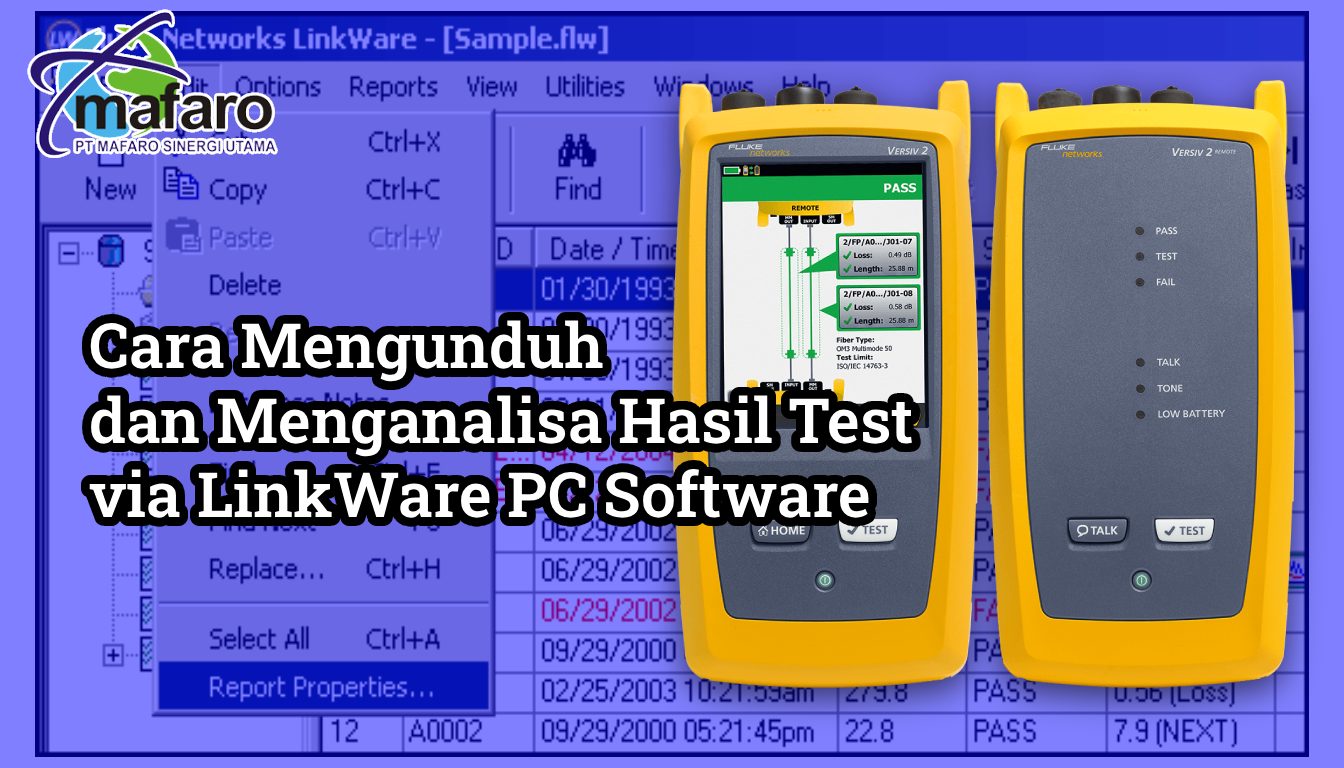
LinkWare PC adalah perangkat lunak manajemen hasil pengujian kabel enterprise-grade yang dikembangkan oleh Fluke Networks. Software ini memungkinkan profesional jaringan untuk konsolidasi, analisis, dan pelaporan hasil pengujian kabel tembaga dan serat optik dari berbagai perangkat pengujian Fluke Networks. Dengan antarmuka berbasis Windows yang intuitif, LinkWare PC mempermudah dokumentasi infrastruktur jaringan kabel dengan standar industri compliance.
Isi Konten:
ToggleMEMAHAMI LINKWARE PC SOFTWARE
Definisi dan Fungsi Utama
LinkWare PC adalah aplikasi Windows-based cable test management software yang dirancang untuk mengelola hasil pengujian dari multiple testers (DSX CableAnalyzer, CertiFiber Pro, OptiFiber Pro, SimpliFiber Pro, LinkIQ) menggunakan satu aplikasi PC terpusat. Software ini menyediakan fitur:
-
Konsolidasi data dari multiple perangkat pengujian ke database terpusat per customer atau site
-
Organisasi hierarki berdasarkan project, subproject, dan cable ID yang terstruktur
-
Visualisasi grafis dengan frequency response curves dan statistical analysis
-
Laporan profesional dalam format Graphical, Text, atau Summary dengan customization logo perusahaan
-
Integrasi cloud melalui LinkWare Live untuk akses remote dan collaborative testing
Perangkat Pengujian yang Kompatibel
| Perangkat | Aplikasi | Standar |
|---|---|---|
| DSX-5000 & DSX-8000 CableAnalyzer | Pengujian Cat 6A, Cat 7, Cat 8 kabel tembaga | ANSI/TIA-1152 |
| CertiFiber Pro OLTS | Pengujian insertion loss serat optik single-mode & multi-mode | IEC 61935 |
| OptiFiber Pro OTDR | Pengujian OTDR, reflektometri, event location | TIA/EIA-455 |
| SimpliFiber Pro | Pengujian serat optik simplified | IEC 61935 |
| MultiFiber Pro | Pengujian multi-fiber channels parallel | ISO/IEC 11801 |
| LinkIQ Cable + Network Tester | Pengujian kabel dan network parameter | ANSI/TIA |
PERSYARATAN SISTEM DAN KOMPATIBILITAS
Spesifikasi Hardware Minimum
Untuk menjalankan LinkWare PC dengan performa optimal:
| Komponen | Minimum | Recommended |
|---|---|---|
| Processor | 1 GHz, 32/64-bit | 2+ GHz multi-core |
| RAM | 2-4 GB | 8 GB (untuk OTDR traces) |
| Sistem Operasi | Windows 8, 8.1, 10 | Windows 10 atau 11 |
| Monitor | 800×600 pixels | 1024×768+ pixels |
| Storage | 500 MB free space | 2+ GB (untuk large databases) |
| Koneksi | USB/RS-232 ke tester | USB 3.0 recommended |
Versi Software
Versi terkini LinkWare PC adalah v11.8+ (September 2025), kompatibel dengan:
-
Versiv firmware v7.0+
-
LinkIQ firmware v2.2+
-
Pengguna device legacy (DSP-100, DSP-2000) gunakan LinkWare PC 6.2
DOWNLOAD LINKWARE PC – PROSEDUR LENGKAP
Langkah 1: Registrasi Akun Fluke Networks
Sebelum download, Anda memerlukan akun terdaftar di Fluke Networks:
Prosedur:
-
Navigasi ke https://www.flukenetworks.com/support/downloads
-
Cari “LinkWare PC” dalam search box
-
Klik download button untuk menampilkan login/registration dialog
-
Buat akun baru jika belum ada:
-
Email (menjadi username)
-
Password (minimum 8 karakter)
-
Nama lengkap
-
Perusahaan/organisasi
-
Negara lokasi
-
-
Verifikasi email – Cek inbox untuk confirmation link dari Fluke Networks
-
Klik link verifikasi untuk activate akun
Catatan: Email harus valid dan accessible karena akan digunakan untuk login dan reset password di masa depan.
Langkah 2: Memilih Versi Download
Terdapat dua opsi download yang tersedia:
| Opsi | Ukuran | Internet | Keunggulan | Kelemahan |
|---|---|---|---|---|
| Standard Install | ~100 MB | Required during install | File kecil, auto-download .NET Framework | Memerlukan internet stabil |
| Standalone Install | ~300 MB | Not required | Bisa install offline, cocok network terbatas | File lebih besar |
Langkah 3: Download File
-
Login ke Fluke Networks account Anda
-
Navigasi ke Downloads & Updates → LinkWare PC
-
Pilih versi 11.8 atau terbaru (cek Compatibility Note untuk device Anda)
-
Klik Download sesuai pilihan installer
-
Save file ke folder yang mudah diakses (Desktop atau Downloads folder recommended)
Link Download Resmi: https://www.flukenetworks.com/support/downloads
INSTALASI LINKWARE PC
Pre-Installation Checklist
Sebelum instalasi dimulai, pastikan:
-
✓ PC memiliki Administrator rights (required untuk installer)
-
✓ Tidak ada versi LinkWare PC lain yang sedang berjalan
-
✓ Disk space minimal 500 MB tersedia
-
✓ Koneksi internet stable jika menggunakan Standard Install
-
✓ Antivirus real-time di-disable sementara (beberapa antivirus mengblock installer)
Prosedur Instalasi Step-by-Step
-
Launch Installer
-
Buka file “LinkWare.exe”
-
Klik kanan → “Run as Administrator” (penting!)
-
Windows UAC akan meminta konfirmasi – klik “Yes”
-
-
Welcome Screen
-
Tampilan awal menunjukkan LinkWare PC logo dan welcome message
-
Klik “Next” untuk lanjut
-
-
License Agreement
-
Baca Fluke Networks License Agreement
-
Centang checkbox “I accept the terms…”
-
Klik “Next”
-
-
Installation Location
-
Default:
C:\Program Files\LinkWare PC -
Tidak disarankan mengubah lokasi kecuali ada alasan khusus
-
Klik “Next”
-
-
Components Selection
-
Ensure “LinkWare PC” dan “LinkWare Stats” sudah tercentang
-
Software akan mengecek ketersediaan .NET Framework 4.0
-
Jika belum installed, installer akan download dan install otomatis
-
Proses ini dapat memakan 5-10 menit
-
-
Shortcut Creation
-
Pilih “Create Desktop Shortcut” untuk kemudahan akses
-
Klik “Next”
-
-
Ready to Install
-
Review informasi instalasi
-
Klik “Install” untuk memulai copying files
-
Tunggu progress bar selesai (biasanya 2-3 menit)
-
-
Finish
-
Klik “Finish” untuk menyelesaikan
-
Optionally check “Launch LinkWare PC” untuk langsung membuka
-
Post-Installation Verification
Setelah instalasi selesai:
-
Jalankan LinkWare PC dari desktop shortcut atau Start menu
-
Sign in dengan Fluke Networks account email dan password
-
Verifikasi versi: Help → About LinkWare PC (check build number)
-
Test koneksi: File → Import → pilih tester type (harus tidak error)
Jika semuanya berjalan normal, instalasi berhasil. Jika ada error, lihat section Troubleshooting.
IMPORT HASIL TEST KE LINKWARE PC
Method 1: Direct Import dari USB Device
Metode ini digunakan saat tester fisik terhubung ke PC:
Prosedur:
-
Hubungkan Tester
-
Gunakan USB cable yang sesuai (USB-C untuk LinkIQ/Versiv terbaru)
-
Hubungkan ke USB port PC
-
Power on device dan tunggu hingga menu utama muncul
-
-
Buka LinkWare PC
-
Launch LinkWare PC
-
Sign in dengan akun Fluke Networks
-
-
Pilih Import Source
-
Klik menu File → Import atau toolbar “Import” button
-
Pilih “From [Device Name]” (contoh: “From Versiv”, “From LinkIQ”)
-
Software akan auto-detect tester model
-
-
Select Test Results
-
LinkWare PC menampilkan list semua test hasil yang tersimpan di device memory
-
Centang checkbox untuk results yang ingin diimport
-
Atau klik “Select All” untuk semua results
-
Klik “Next”
-
-
Configure Import Settings
-
Tentukan Project destination (existing atau create new)
-
Tentukan Subproject jika ada
-
Klik “Next” untuk preview data
-
-
Confirm Import
-
Review imported records count
-
Klik “Finish” untuk complete import
-
Status bar akan menunjukkan import progress
-
Setelah selesai, results akan tersimpan di database LinkWare PC dan dapat diakses offline.
Method 2: Import dari File LinkWare (.flw)
Jika hasil test sudah tersimpan dalam format .flw file:
-
Klik File → Import → From LinkWare File
-
Browse ke lokasi file .flw
-
Select file dan klik “Open”
-
Pilih which records to import (atau select all)
-
Tentukan project destination
-
Klik “Finish”
Method 3: Cloud Import dari LinkWare Live
Upload hasil test dari tester ke cloud:
-
Di tester, navigasi ke Results → Transfer → LinkWare Live
-
Connect ke Wi-Fi atau wired network (Wi-Fi option ada di Main menu)
-
Enter LinkWare Live credentials
-
Select project dan klik “Sync”
-
Tunggu upload complete (status ditampilkan di tester)
Download dari cloud ke LinkWare PC:
-
Buka LinkWare PC
-
Klik menu File → Import from LinkWare Live
-
Enter LinkWare Live credentials
-
Select organization dan projects untuk didownload
-
Klik “OK” untuk import ke LinkWare database
-
Software auto-organize results ke correct projects
Metode cloud ini ideal untuk team-based projects dan mobile site testing.
MENGORGANISIR HASIL TEST
Struktur Hierarki LinkWare PC Database
LinkWare Database (C:\Users\[user]\AppData\LinkWare)
├── Project 1 (Customer A - Building Cabling)
│ ├── Cable ID 001 (Result_1)
│ ├── Cable ID 002 (Result_1, Result_2 - Re-test)
│ └── SubProject: Floor 2
│ ├── Cable ID 201
│ └── Cable ID 202
├── Project 2 (Customer B - Data Center)
└── Project 3 (Archive - 2024)
Membuat Project Baru
-
File → New Project atau klik “New Project” toolbar button
-
Masukkan informasi project:
-
Project Name: Deskriptif, contoh “PT XYZ Tower A Cabling Certification 2026”
-
Customer Name: Nama customer/klien
-
Site Location: Lokasi geografis project
-
Comments: Additional notes (optional)
-
-
Klik “OK”
Project akan ditampilkan di left panel treeview.
Membuat Subprojects untuk Organisasi
Untuk project besar, gunakan subprojects untuk pemisahan per floor, area, atau test phase:
-
Pilih parent project
-
Klik kanan → Edit Project → Create Subproject
-
Enter subproject name (contoh: “Floor 1”, “Floor 2”, “Zone A”, dst)
-
Klik “OK”
-
Drag-and-drop cable results ke subproject yang sesuai (atau assign saat import)
Sorting dan Filtering Results
LinkWare PC menyediakan powerful search dan sort capabilities:
| Fitur | Kegunaan | Akses |
|---|---|---|
| Quick Sort | Sort by Cable ID, Date, Pass/Fail status | Right-click records → Sort |
| Advanced Filter | Filter berdasarkan multiple criteria (date range, margin threshold, cable type) | Tools → Advanced Filter |
| Group By | Pengelompokan results berdasarkan parameter (contoh: group by technician, test date) | Right-click → Group By |
| Search | Full-text search di Cable ID dan comments | Ctrl+F atau Edit → Find |
Menggunakan fitur ini memungkinkan quick identification dari marginal pass cables, failed installations, atau specific customer jobs.
MENGANALISIS HASIL TEST SECARA DETAIL
Membuka dan Melihat Test Results
-
Navigasi ke record di project treeview
-
Double-click record atau klik “Open” button
-
LinkWare PC menampilkan hasil test dalam 4 main tabs:
-
Summary Tab: Ringkasan overall PASS/FAIL dan cable info
-
Details Tab: Parameter individual dengan nilai dan margins
-
Graphs Tab: Visualisasi frequency response untuk setiap parameter
-
Comments Tab: Catatan teknis dan observasi lapangan
-
Parameter Pengujian Kabel Tembaga (Copper Cable)
Untuk kabel Cat 6A, Cat 7, Cat 8 tembaga, LinkWare PC menampilkan parameter berikut:
Status Overall
-
✓ PASS: Semua parameter memenuhi standar yang dipilih (ANSI/TIA atau ISO/IEC)
-
✓ PASS* (Marginal Pass): Nilai mendekati limit tetapi still compliant (ditandai asterisk per ANSI/TIA-1152)
-
✗ FAIL: Satu atau lebih parameter exceed limit atau tidak meet minimum margin
Parameter Kritis dan Interpretasi
| Parameter | Penjelasan | Unit | Typical Limit (Cat 6A @ 100m) |
|---|---|---|---|
| Wire Map | Konektivitas pair (T568A/B) – verifikasi pin sequence correct | Status | Must be correct (PASS/FAIL) |
| Length | Total cable length diukur | Meter/Feet | ≤100m (328 ft) |
| Propagation Delay | Waktu rambat sinyal (delay per unit length) | ns/m | ≤5.29 ns/m |
| Delay Skew | Perbedaan propagation delay antar pair | ns | ≤45 ns @ 100m |
| Insertion Loss | Attenuasi signal total dalam transmisi | dB | Varies by frequency (47.6 dB @ 468 MHz) |
| NEXT (Near End Crosstalk) | Interferensi sinyal antara pair di satu ujung | dB | ≥30.1 dB @ 468 MHz |
| PSNEXT (Power Sum NEXT) | Interferensi dari 3 pair lainnya (lebih representatif) | dB | ≥23.0 dB @ 468 MHz |
| ACR-F (Attenuation to Crosstalk Ratio Far-End) | Margin: Loss vs. Far-end crosstalk | dB | ≥10.9 dB |
| PSACR-F | Power sum version ACR-F | dB | ≥3.8 dB |
| Return Loss (RL) | Refleksi sinyal dalam transmission | dB | ≥20 dB |
Worst Case Margin vs. Worst Case Value: Penting untuk memahami perbedaan:
-
Worst Case Margin: Nilai yang paling dekat dengan limit line – ini adalah angka PALING PENTING karena menunjukkan “headroom” yang tersisa untuk transmisi
-
Margin positif besar = Kabel lebih robust dan future-proof
-
Margin kecil atau negatif = Kabel marginal atau fail
-
Example: Insertion Loss Margin 3.2 dB berarti masih 3.2 dB di atas failure threshold
-
-
Worst Case Value: Nilai absolut terburuk, namun mungkin tidak yang terdekat dengan limit
-
Kurang signifikan untuk penilaian compliance
-
Bisa terjadi pada frekuensi berbeda dari margin terburuk
-
Contoh Interpretasi Report:
Insertion Loss (IL):
Worst Case Margin: 44.4 dB (pada Pair 7-8 di 468 MHz)
Limit (threshold): 47.6 dB
Interpretation: ✓ PASS – Cable memiliki margin 3.2 dB, aman untuk Cat 6A
NEXT:
Worst Case Margin: 7.0 dB (Pair 1-2 & 7-8 di 498 MHz)
Limit: 30.1 dB
Interpretation: ✓ PASS – Margin excellent, no crosstalk issues
Parameter Pengujian Serat Optik (Fiber)
Untuk single-mode dan multi-mode fiber testing menggunakan CertiFiber Pro atau OptiFiber Pro:
Parameter Fiber
| Parameter | Penjelasan | Unit | Standar |
|---|---|---|---|
| Bi-Directional Loss (BDL) | Average insertion loss dari 2 arah pengujian | dB | TIA 568.3-D-1 |
| Insertion Loss (IL) | Total attenuation serat optik | dB | ≤dependent on length & wavelength |
| OTDR Trace | Reflektometri menunjukkan events (connectors, splice, break) | dB vs. distance | Both wavelengths required |
| Event Location | Lokasi precise dari setiap konektor/splice dalam serat | Meter | TIA 568.3 |
| Fiber Type | Jenis serat (SM, OM1, OM2, OM3, OM4) | – | Harus match design |
| Launch/Tail Cord | Reference cord untuk OTDR accuracy di measurement end | Status | TRC used: Yes/No |
Fiber Endface Inspection
Inspeksi ujung serat adalah quality control kritis:
-
PASS: Permukaan bersih, radius kurva sesuai standard, no cracks/particles
-
FAIL: Partikel, goresan, incorrect radius (dapat menyebabkan back-reflection dan signal loss)
-
LinkWare PC menampilkan raw endface images dari probe untuk visual verification
Membaca Grafik Frequency Response
Grafik di LinkWare PC sangat informatif untuk diagnostik advanced:
Komponen Grafik:
-
X-Axis: Frekuensi pengujian (100 Hz → 1 GHz untuk Cat 6A)
-
Y-Axis: Nilai parameter dalam dB
-
Warna Garis:
-
Biru: Measured trace (nilai actual dari test)
-
Merah: Limit line (threshold failure)
-
Hijau: Ideal reference (untuk perbandingan)
-
-
Worst Case Marker: Titik/label yang menunjukkan margin terburuk (seringnya di high frequency)
Interpretasi Grafik:
-
Jika garis biru selalu di bawah/left dari garis merah = PASS dengan margin baik
-
Jika garis biru menyentuh atau melampaui garis merah = FAIL
-
Jarak besar antara biru dan merah = Margin excellent, cable berkualitas tinggi
-
Jarak kecil atau trend going up = Potential problem, monitor atau re-certify
Contoh Diagnosis:
-
Insertion Loss graph yang naik tajam di high frequency → mungkin ada damage, konektor buruk, atau kabel terlalu panjang
-
NEXT graph yang smooth dan flat → Good shielding dan pair balance
-
Return Loss spikes → Potential konektor mismatch atau impedance discontinuity
MEMBUAT LAPORAN PROFESIONAL
Generate Report Procedure
-
Tentukan Scope
-
Select individual cable hasil test
-
Atau select entire project/subproject untuk batch report
-
-
Akses Report Function
-
Report → Generate Report dari menu bar
-
Atau highlight results → klik Report toolbar button
-
Atau klik kanan records → “Create Report”
-
-
Pilih Report Format
Format Kegunaan Output Graphical Format Presentasi ke customer, management visibility Grafik berwarna, visual-friendly, recommended Text Format Dokumentasi teknis, archival record Numeric summary hanya, compact Summary Format Quick overview, satu page per cable Pass/Fail status & critical values only Combined Comprehensive documentation Kombinasi semua format di atas Rekomendasi: Gunakan Graphical Format untuk client presentations; Text Format untuk internal records.
-
Customization Options
-
Upload company logo (untuk branding)
-
Tentukan header/footer text
-
Pilih parameter mana yang visible di report (contoh: include/exclude OTDR untuk fiber)
-
Add custom comments atau disclaimer
-
Pilih bahasa report
-
Include test reference chord info (penting untuk fiber)
-
-
Generate
-
Klik “Generate” button
-
Report akan di-render dalam PDF viewer
-
Review untuk accuracy sebelum finalize
-
-
Save/Print
-
Save as PDF: Klik Save button → simpan di lokasi yang aman
-
Print: Klik Print → kirim ke physical printer
-
Email: Export PDF dan attach ke email client
-
Struktur Report yang Dihasilkan
Laporan LinkWare PC standar mencakup:
1. Cover Page
-
Judul: “Cable Certification Report” atau custom
-
Customer name
-
Project name dan location
-
Test date dan technician name
-
Company logo (jika ditambahkan)
2. Executive Summary (page 2-3)
-
Total cables tested: X (PASS: Y, FAIL: Z, MARGINAL: W)
-
Test standard used (contoh: “TIA 568.3-D-1 Cat 6A Permanent Link”)
-
Overall project status (PASS/FAIL)
-
Supported applications (contoh: “Supports 10G BASE-T, 25G BASE-T”)
3. Detail Pages (one per cable ID)
Each detail page mencakup:
-
Cable ID, location, test date & time
-
Overall result (✓ PASS / ✗ FAIL)
-
Worst case margins untuk setiap parameter dengan frequency occurrence
-
Full-page graphical plots untuk NEXT, IL, ACR, RL, dll
-
For PASS results: Supported technology (10G, 25G, 40G, 100G)
-
For FAIL results: Red-highlighted failure reason
4. Appendix (jika diperlukan)
-
Test setup configuration
-
Equipment model & serial numbers
-
Calibration dates (untuk compliance audit)
-
Reference cord verification (untuk fiber tests)
-
Technician comments & observations
Total Report Length: Biasanya 5-50 halaman tergantung jumlah cables dan format dipilih.
FITUR ANALISIS LANJUTAN
LinkWare Stats – Statistical Analysis
LinkWare Stats adalah built-in analytics engine untuk mengidentifikasi trend dan anomali:
Kegunaan Praktis:
-
Identify worst-performing cable runs (untuk potential remediation)
-
Detect trend pelemahan dari multiple test cycles (untuk preventive maintenance)
-
Analyze pair-by-pair performance distribution
-
Compare performance antara cable types atau manufacturer
Cara Mengakses:
-
Pilih satu atau multiple projects
-
Tools → LinkWare Stats atau Analyze → Statistics
-
Software generate graphical analysis
Output Stats:
-
Histogram distribusi margin (visual bell curve dari performance)
-
Average dan median margin per parameter
-
Worst 5 dan Best 5 cables
-
Performance by technician, location, atau test date
-
Trend analysis for projects tested multiple times
Re-Certification – Changing Test Standards
Jika kabel sudah ditest tetapi ingin di-evaluate terhadap standard berbeda:
-
Pilih record yang ingin di-re-certify
-
Tools → Re-Certify atau highlight record → klik “Re-Certify”
-
Pilih test standard baru (contoh: dari “TIA Cat 6A” ke “ISO Cat 6A” atau “Cat 7”)
-
Tentukan NVP (Nominal Velocity of Propagation) jika berbeda
-
Klik “Next” → software re-evaluate measurement data terhadap new limits
-
Review hasil pass/fail dengan new standard
-
Klik “Finish” → RC (Re-Certified) result ditambahkan ke project
Fitur ini useful untuk future-proofing audit atau ketika standar industry berubah.
Data Export untuk Advanced Analysis
LinkWare PC memungkinkan export data dalam berbagai format:
| Format | Kegunaan | Akses |
|---|---|---|
| Client sharing, hardcopy documentation | Report → Save as PDF | |
| XML | Integration dengan sistem lain, data archival | File → Export as XML |
| Database Backup | Full database export untuk backup atau transfer | File → Backup Database |
| Raw CSV | Import ke Excel/Tableau untuk custom analysis | Specific records → Export CSV |
Lihat juga layanan kami : Jasa Sertifikasi Kabel LAN untuk Kebutuhan Audit ISO Perusahaan
BEST PRACTICES DAN TROUBLESHOOTING
Best Practices untuk Success
-
Naming Convention Konsisten
-
Format Cable ID:
[Building]_[Floor]_[Room]_[SequenceNum] -
Contoh:
BldgA_FL01_RM101_001 -
Hindari special characters atau spaces
-
-
Project Organization
-
Buat project terpisah per customer
-
Gunakan subprojects untuk per-floor atau per-area
-
Archive old projects setiap tahun untuk maintain performance
-
-
Regular Backups
-
Backup LinkWare database ke external drive monthly
-
Export .flw files dari critical projects
-
Maintain 2-3 backup copies di different locations
-
-
Test Record Quality
-
Pahami worst case margin vs. value (margin lebih important)
-
Hati-hati dengan Marginal Pass* – rekomendasikan monitoring atau retesting
-
Verify fiber endface images visual quality
-
Check calibration dates equipment sebelum high-stakes testing
-
-
Report Professionalism
-
Selalu include company logo dan branding
-
Use Graphical format untuk client presentations
-
Add field comments tentang environmental condition jika ada anomali
-
Include test standards dan equipment info di header
-
Troubleshooting Umum
| Masalah | Penyebab | Solusi |
|---|---|---|
| Device tidak terdeteksi saat import | Cable error, driver missing, device off | Coba USB cable baru, restart PC & device, check Device Manager drivers |
| “No Test Data to Import” error | Device memory kosong atau corrupt | Verify device punya results saved, test device dengan manual test dulu |
| Software crash saat membuka large project | Insufficient RAM, database corrupt | Upgrade ke 8GB RAM, split project ke smaller subprojects |
| Cannot sign in account | Network issue, wrong password, account not verified | Reset password di flukenetworks.com, verify email confirmation |
| Report tidak ada grafik | Plot data tidak recorded saat test | Re-generate report, ensure “Include Graphs” option selected |
| Graphs show wrong scale atau disconnected | Measurement data corrupt atau incomplete | Delete record & re-import, atau contact Fluke support |
Kesimpulan
LinkWare PC adalah tool essential dan professional-grade untuk jaringan infrastructure engineers yang melakukan cable certification projects. Dengan mengikuti panduan komprehensif ini, Anda memiliki pengetahuan untuk:
✓ Download & Install LinkWare PC dengan benar sesuai spesifikasi PC
✓ Import hasil test dari berbagai tester Fluke Networks
✓ Mengorganisir large-scale projects dengan hierarchical structure
✓ Menganalisis parameter pengujian secara detail dengan margin interpretation
✓ Membuat laporan profesional untuk client presentation dan compliance documentation
✓ Menggunakan fitur analytics lanjutan untuk diagnostic dan trend analysis
Rekomendasi Going Forward:
-
Keep software updated ke versi terbaru untuk kompatibilitas device dan bug fixes
-
Maintain organized database dengan clear naming convention dan project structure
-
Implement regular backup protocol untuk data protection
-
Develop expertise dalam membaca graphs dan interpreting worst-case margins
-
Leverage LinkWare Live untuk cloud-based collaboration dan remote access
Dengan best practices ini, dokumentasi proyek jaringan Anda akan mencapai standar industri tertinggi, compliance audit lebih mudah, dan menerima laporan yang berkualitas.
Jika perusahaan Anda ingin menghadapi audit ISO dengan lebih percaya diri, Mafaro Networks siap menjadi mitra sertifikasi kabel LAN yang profesional dan dapat diandalkan.